Dragonwilds: Find Your Player ID
 RuneScape: DragonwildsGuide
Your Dragonwilds server will not start until it knows who owns it. In the game, open Settings from the main menu, scroll to the very bottom, and copy your…
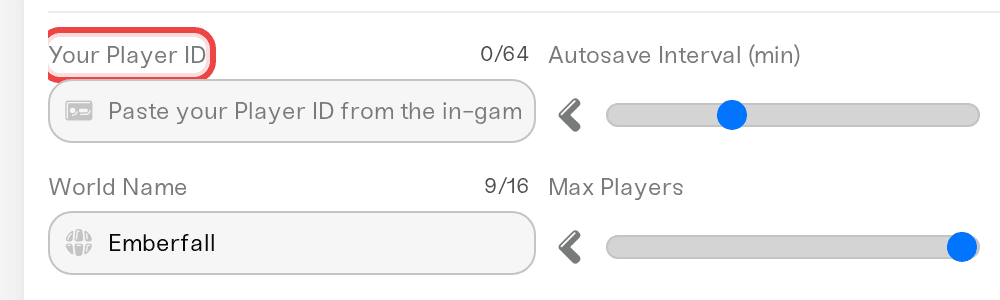
Your Dragonwilds server will not start until it knows who owns it. In the game, open Settings from the main menu, scroll to the very bottom, and copy your Player ID: a 32-character code of numbers and the letters a to f. It is not your gamer tag, PSN name or character name. Paste it into Your Player ID in your server's settings, save, and press Start. On a cloud stream or a console, take a screenshot or photo of the code and copy the text out of it on your phone.
Why the server asks for it
RuneScape: Dragonwilds has no admin password. The dedicated server is told up front which player owns the world, and that player gets the owner tools in game, so we hold Start until the field is filled in.
What a Player ID looks like
The game makes it for you. It always looks like this: 0002a1b2c3d4e5f60718293a4b5c6d7e
32 characters, no spaces.
Only the numbers 0 to 9 and the letters a to f: there is no O (it is a zero) and no I or l (it is a one).
A name you picked yourself is never it: not your Xbox gamertag, PlayStation Online ID, Nintendo or Steam name, Jagex display name, or character name. The dashboard tells you if you paste one.
Copy your Player ID from the game
Start RuneScape: Dragonwilds wherever you play it (PC, PlayStation 5, Xbox Series X|S, Switch 2, or a cloud gaming service).
Open Settings from the main menu. You do not need to join your server, and it does not need to be running.
Scroll to the very bottom. On PC, use the copy control next to your Player ID.
Your Player ID is the same on every platform you sign in on with the same account.
Playing through cloud gaming or on a console
Dragonwilds runs on Xbox Cloud Gaming and GeForce NOW, including in a phone browser, and the Player ID is in the same place. The catch: the game's copy control copies inside the stream (or on the console), not to your phone. So take a picture and copy from that:
With your Player ID on screen, take a screenshot of the stream. On a console, photograph your TV.
Copy the code out of the picture. On iPhone, open it in Photos, touch and hold the code, then tap Copy. On Android, open it in Google Photos, tap Lens, then Text, and copy the code.
Paste it into Your Player ID (below).
If your phone cannot pick the text out, type it from the picture slowly.
Paste it into your server settings
Open My Servers and your Dragonwilds server's Detail view (on a phone, tap the server and swipe to Overview).
On the Overview card, open Details and paste into Your Player ID. Spaces and line breaks from a copied picture are removed for you.
Press Save changes, then Start.
If the save is refused, the message says why:
| Message | What happened |
|---|---|
| That isn't a Player ID | A name, gamer tag or sentence. Copy the 32-character code instead. |
| That Player ID has a character a Player ID can't have | A typo, usually an O for a zero or an l for a one. |
| A Player ID has exactly 32 characters | Part of the code is missing, or something extra. |
A blank field saves fine, so you can finish your other settings first; it only blocks the boot.
What the owner can do in game
Join your server with the account that owns that Player ID and the in-game Server Management screen is yours: kick, ban, unban, and promote friends to admin. You can also add admins on the Admins tab of your server settings, by each friend's own Player ID (never their gamer tag). That list reaches the server at its next start. Admins can kick and ban players who are online; only the owner can unban.
If you pasted the wrong id
The server still starts, but you join with no Server Management screen, and Your Player ID shows a red warning (tap it for the reason). If it offers Use it, check the code is yours, press it, then Save changes and restart. Otherwise paste the right id. Your world does not change.
Things that will not fix it
Your gamer tag, PSN name, Steam name or character name. The server wants the 32-character Player ID.
The in-game copy control in a cloud stream. The copy stays in the stream. Copy from a screenshot.
Joining your server to find the id. It is in the main menu's Settings.
A friend's Player ID. Then your friend is the owner, not you.
Looking for an admin password field. There is none in Dragonwilds 1.0.
Restarting without saving. Save first, then start.
Need help?
Ask in Discord or email support@haptic.gg with a screenshot of your Settings screen and of the message on your server card.


