Dragonwilds: How Friends Join Your Server
 RuneScape: DragonwildsGuide
Friends do not need an address. They open RuneScape: Dragonwilds, go to Public Worlds, and search for your World Name exactly as it appears on your server…
Friends do not need an address. They open RuneScape: Dragonwilds, go to Public Worlds, and search for your World Name exactly as it appears on your server card (it is case-sensitive, and it is the world name, not the server name). If you set a world password, they enter it next. The other way in is the Invite code shown next to the world name on your card: the game prints a fresh one every time the server starts, so always send the code the dashboard shows now. Up to 6 players can be in the world at once.
Send friends your world name
Open My Servers and look at your Dragonwilds server's card. The colored strip at the bottom shows the World Name instead of an address.
Click it. It flashes Copied world name! and the exact name is on your clipboard.
Send it to your friends as is, with the capitals and spacing intact. They do not need a Haptic account to play.
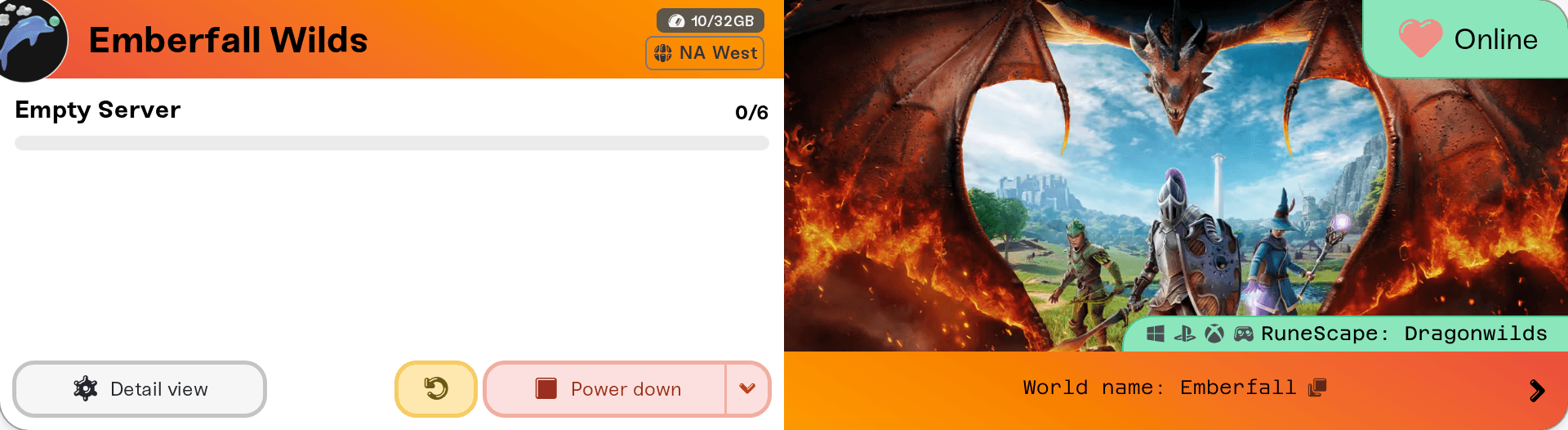
If your server has a password, use Copy password from the same strip (on desktop, open the small arrow at the right end; on a phone the buttons sit under the name). Add or clear a password in the Server Password field of your server settings.
Join from inside the game
Start RuneScape: Dragonwilds and open the world browser, Public Worlds.
Search for the world name. It must match exactly, including upper and lower case. Your server name only shows as the "Created by" line under the result, so searching for it finds nothing.
Select the world. If it has a password, the game asks for it now.
Check that the card says Online first. A stopped server is not in the list at all.
Or use the invite code
Your card also shows an Invite code in the form AB12-CD34, right next to the world name, with its own copy button (Copied invite code!). Friends enter it in the game's invite code field and land in your world without searching.
One catch: the game makes a new invite code every time the server starts, including restarts you did not trigger, such as an automatic game update, so an old code stops working. The world name never changes on its own: pin the world name and password for a weekly group, and use the invite code for a quick join tonight.
Consoles and crossplay
Dragonwilds 1.0 plays across PC (Steam, Epic, and the Jagex Launcher), PlayStation 5, Xbox Series X|S, and Switch 2, and everyone joins a dedicated server the same way: search the world name or enter the invite code. Consoles can join your server but cannot host one.
Crossplay is on by default. To keep the world to one platform, change Who can join in your server settings (everyone, PC only, PlayStation only, Xbox only, or Nintendo Switch only) and restart.
After a game patch, the console versions can arrive days after PC while Jagex waits on console certification. Your server moves to the new build as soon as it is out, so console friends may not see the world until their console has the same patch.
The 6-player limit
A Dragonwilds dedicated server holds at most 6 players at once. The game fixes that ceiling; no setting, plan, memory size or file edit raises it. You can lower it with the Max players setting if you want a smaller group. A seventh person (or one over your own limit) sees the world as full until someone leaves.
If someone cannot get in
They searched the server name. The browser matches the world name only.
A capital letter or space is off. Copy the name from the card again rather than typing it.
The invite code is from before the last restart. Send the code the card shows now.
The game updated and the world vanished from the list. The server must match the game's build. Yours switches to a new build by itself once nobody is on; until then the card shows New update available, and a restart switches right away.
A console friend cannot see the world right after a patch. Their console may not have the patch yet (see Consoles and crossplay).
They tried Steam's Join Game or a Steam invite. Steam joins do not work for dedicated servers in this game; use the world name or the invite code.
An Xbox player cannot join a crossplay world. Xbox's online safety settings can block playing with people on other networks; check the console's cross-network play setting.
Something on their network. VPNs, firewalls, and school or work networks block game traffic; a phone hotspot is a quick test. Full checklist: I can't connect to my server.
Need help?
Ask in Discord or email support@haptic.gg with your world name and a screenshot of what your friend sees in the world browser. Include whether they searched or used the invite code.


