V Rising: Upload Your World
 V RisingGuide
A V Rising world is a folder of save files. Zip one world folder, from your own PC or from another host, and upload it with Upload World on your server's…
A V Rising world is a folder of save files. Zip one world folder, from your own PC or from another host, and upload it with Upload World on your server's Backups card (or Upload Existing World while creating the server). The server switches its Save Name to that world and loads it at the next start. Your dashboard settings stay in charge; settings files inside the folder are left out.
Step 1: find the world on your PC
Close V Rising.
Press Win+R, paste
%USERPROFILE%\AppData\LocalLow\Stunlock Studios\VRising\CloudSaves, and press Enter.Open the
v4folder. IfCloudSavesholds another folder instead, open that one first andv4is inside. Each world is a folder with a long ID as its name, holding files such asAutoSave_12.save.gz.To tell worlds apart, sort by date modified: the one you played last is the newest.
The dashboard's upload panel shows the same path under "Where are my save files?".
Step 2: zip that one folder
Right-click the world folder and compress it: Compress to ZIP file on Windows 11, Send to > Compressed (zipped) folder on Windows 10. ZIP, RAR, 7Z and TAR.GZ all work. Zip one world only; the server loads one world at a time.
Moving from another host? Download the world's folder from under Saves/v4 on that host and zip it the same way.
Step 3: upload it
Open My Servers and stop your V Rising server.
On the Backups card, choose Upload World and drop the zip in.
Wait for the import to finish. A backup of the server's current world is taken first, so the world that was there is one click away if you want it back.
Look at Save Name in your server settings: it now names the uploaded world. Leave it that way.
Start the server.
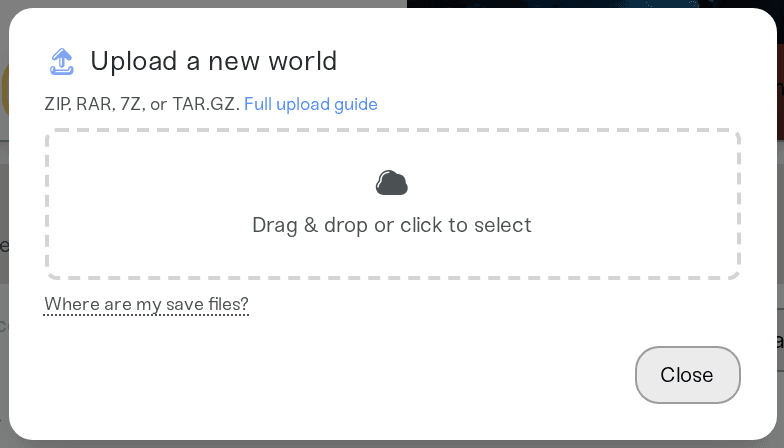
Setting up a new server instead? Switch on Upload Existing World while creating it and the same steps apply.
What comes across, and what does not
The world comes across: everything in the save files.
Settings do not. A private game keeps its rules in settings files next to the saves. The server leaves those out and uses the settings on your dashboard, so set PvP or PvE, rates and castle limits there after the upload.
Worlds from before V Rising 1.1 (in
v1,v2orv3folders) cannot load on the current game.
Things that will not fix it
Uploading the whole
CloudSavesorv4folder with several worlds in it. Upload one world folder.Uploading only one
AutoSavefile. Zip the whole world folder.Changing Save Name back to the old one. That loads the server's previous world, not the upload.
Need help?
Ask in Discord or email support@haptic.gg with the name of the zip you uploaded and a screenshot of your Save Name setting.


