See who is online on your server
 HapticGuide
Your server card on My Servers shows who is playing right now. While the server is online, the card lists the players by avatar and name with a N players…
Your server card on My Servers shows who is playing right now. While the server is online, the card lists the players by avatar and name with a N players heading and a count against your max players. When nobody is on, it says Empty Server. There is no notification when a player joins: no email, no Discord message, no push. The Console card shows joins and leaves as they happen, and your public page can show the same live list to friends.
Find the player list
Open My Servers in your dashboard.
Look at your server's card, below the status badge. The heading tells you the state at a glance:
N players (or 1 player): the server is online and people are on it.
Empty Server: online, nobody connected right now.
Server Offline: the server is not running, so there is nobody to list.
To the right of the heading sits the count against your limit, written as connected players over the maximum, with a blue bar underneath. The limit is your server's Max Players setting. If the count is higher than the limit, it turns red and reads (Over capacity).
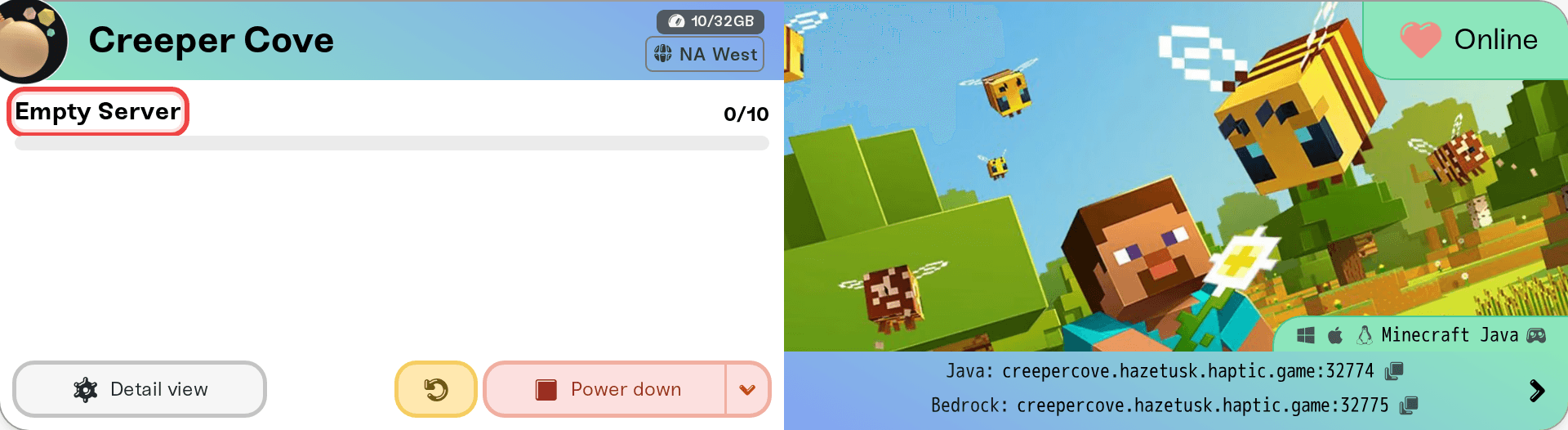
The list updates on its own while your dashboard is open.
What the list shows
Each player appears as an avatar with their name underneath. On a desktop browser, clicking a player opens their profile page in a new tab. On a phone, a small View Profile dialog asks first, then opens the tab.
Minecraft players show their skin as the avatar. On a Java server with Bedrock Crossplay on, Bedrock players get a small Bedrock badge and their name shows without the leading dot the server uses internally.
Crossplay games such as Palworld mark each player with a platform badge (Steam, Xbox, PlayStation, Apple), so you can tell where a friend is connecting from.
Enshrouded shows each player's role in parentheses under the name, for example (Admin) or (Guest).
When more people are online than fit on the card, the first few are shown and the rest sit behind a +N more button. On desktop it opens a small panel with a Search by name or Steam ID... box and a N players online header; type part of a name to filter. On a phone the button expands the list in place, and Less folds it back up.
The player list is not the Admins tab
The Admins tab on the Overview card is a roster: the people you have given a role, whether or not they are playing. Its own N players line counts roster entries, not connected players. The live list on the card is the only place that shows who is connected right now. To manage roles, see Manage admins, whitelist, and bans from your dashboard.
Get pinged when someone joins
Honest answer: Haptic does not send a notification when a player joins your server. None of the email switches under Account > Settings > Email Notifications covers a player joining the game. The article "Choose which emails Haptic sends you" walks through every switch.
What you can do instead:
Watch the Console card on your server page. It is a live log, and your game prints a line each time a player joins or leaves. Most games also have a command that lists who is online, such as
listfor Minecraft. See Use the server console: watch logs and send commands.Give friends the public page. In Public Page Settings, turn on Online players under Show on public page. Your haptic.gs page then shows a Players online count with avatars while the server is running, so your group can check who is on without needing your dashboard. Flip the toggle off and save to hide it again. See Set up your server's public page.
On a Wake & Play server, this same count is what tells the server it is empty and can sleep. See What is Wake and Play?
Things that will NOT fix it
Adding people to the Admins tab does not put them on the live list. The roster is about roles, not presence.
Refreshing the page will not make an offline server show players. Start the server first.
Turning on the Friend activity or Server status emails does not produce a join notification. Server status covers starts, stops, and crashes only.
Checking the public page while the server is asleep shows nothing for players; the Players online block only appears while the server is online.
Need help?
Ask us on Discord or at support@haptic.gg. Include your server name, the game, and a screenshot of the card if the list looks wrong while people are clearly playing.



