40% OFFOur winter sale is on! We're giving everyone 40% off their new server at checkout!
 EnshroudedGuide
Enshrouded 1.0 saves each single-player world as one file, named like world0.ksd, in %USERPROFILE%\Saved Games\keen games\Enshrouded\default. Quit…
Enshrouded 1.0 saves each single-player world as one file, named like world0.ksd, in %USERPROFILE%\Saved Games\keen games\Enshrouded\default. Quit Enshrouded, zip the file of the world you want, power down your server, and upload the ZIP with Upload World on the Backups card. We install it as the world your server loads, and your current server world is backed up first. A world from before 1.0 still works: the server converts it.
Quit Enshrouded, so its last save is on disk.
Press Win+R, paste %USERPROFILE%\Saved Games\keen games\Enshrouded\default, and press Enter.
Each world is one file, named like world0.ksd. Sort by Date modified: the world you played last has the newest file. A world from before 1.0 is in %USERPROFILE%\Saved Games\Enshrouded instead, as files starting with the same 8 characters, named in the order you created your worlds:
| World | File name |
|---|---|
| 1 | 3ad85aea |
| 2 | 3bd85c7d |
| 3 | 38d857c4 |
| 4 | 39d85957 |
| 5 | 36d8549e |
| 6 | 37d85631 |
| 7 | 34d85178 |
| 8 | 35d8530b |
| 9 | 32d84e52 |
| 10 | 33d84fe5 |
In an older world, the file with just the 8 characters is the world itself, -1 to -9 are rolling copies, -index says which is newest, and _info holds its name. None has an extension, so Windows lists them as plain "File".
No world files there? The game's world list has separate local and Steam Cloud lists. Worlds on the Steam Cloud list are .ksd files in C:\Program Files (x86)\Steam\userdata, in your Steam user ID folder, under 1203620\remote (an older world from before 1.0 can be there too). A friend's world is saved on the host's PC, so ask the host to send you the file.
Played since the 1.0 update? Use the .ksd file, not the old files in Saved Games\Enshrouded: those are the copy from before your world moved to the 1.0 format.
On a Steam Deck or Linux, Enshrouded runs through Proton, so look for the same folders inside its Proton prefix: ~/.local/share/Steam/steamapps/compatdata/1203620/pfx/drive_c/users/steamuser/Saved Games/keen games/Enshrouded/default, and Steam Cloud worlds under ~/.local/share/Steam/userdata/<your Steam user ID>/1203620/remote. If your world is not there, message us and we will help you find it.
Select the world's .ksd file. For a world from before 1.0, select the world file and every file that starts with the same 8 characters instead, including the one ending in -index: without it the server converts the file named with just the 8 characters, which may be an older copy. Right-click and choose Compress to ZIP file (on Windows 10: Send to, then Compressed (zipped) folder).
Leave everything else out. An upload that holds two or more worlds is refused, so don't zip a whole folder of several. Your characters stay on your PC and come with you to any server.
A few shapes that also work:
A renamed world file, or one downloaded twice from Steam's website (world0 (1).ksd): upload it as it is. When the upload holds no file named like world0.ksd, we check that the file is a world and install it as your server's world. Your character files (character0.ksd, global.ksd) are never used as a world.
Only the game's backup copies (world0.ksd.backup-0 to -9 in the backup folder): upload them, and we install the most recently saved copy as your server's world and tell you which one we used.
A world in a folder you named Backup, or deep inside a folder you zipped whole (a Steam Deck's compatdata folder, a Linux home folder): we find it.
Power down your server. Upload World stays disabled while it runs.
Open the Backups card and click Upload World.
Drop your ZIP into the box (RAR, 7Z, and TAR.GZ work too) and click Upload and replace world.
When the import finishes, press Power up.
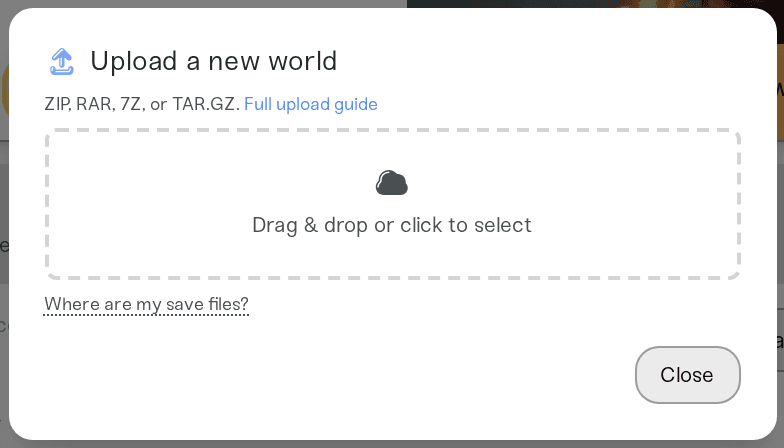
A dedicated server loads one world, world0.ksd, so the import installs your file as that one, and you can bring any of your worlds. A world from before 1.0 is converted by the game the first time your server starts on it, and the old files move to savegame/migrated. The conversion is one way, so keep your old files if you may want them. If the older world was last saved before the 1.0 update, the server card says so after the upload: if you have played that world since the update, upload its .ksd file instead. Your previous server world stays in the Backups list as Backup before world upload. Uploading a dedicated server's whole savegame folder that also has an older stray world1.ksd? We install world0.ksd, the only world a server loads, and the server card says so. To use world1.ksd instead, upload only that file. The old server's settings file (enshrouded_server.json) and its mods are not part of a world upload, and the server card says so after the upload: set your server's settings on its Overview card (the server name on the Basic tab, the passwords and game settings on the Details tab), and add mods with the Files card (Add mods to your server). Setting up a new server instead? Switch on Upload Existing World during setup and drop the same ZIP there.
The server card's status reads Import failed, and the red block on the card gives the reason:
"No Enshrouded world found in this upload...": the ZIP is missing the world file. Zip the .ksd file again, or for an older world the one named with just the 8 characters and its files.
"This upload has 2 Enshrouded worlds...": the ZIP holds two or more worlds. While your upload is still kept, the card lists them: pick the one you want and we install it without a second upload. Older worlds are named with their number in your world list, for example "3bd85c7d (world 2)". Otherwise zip only one world.
"world0.ksd in your upload is empty (0 bytes)...": the file had not finished downloading or syncing. Quit Enshrouded, let Steam Cloud finish, and upload the file again. If it is in OneDrive, right-click it and choose Always keep on this device first.
"...is incomplete" or "...is damaged": the file was copied while the game was still saving it. Enshrouded cannot load a file like that, so we stop it before it reaches your server. Quit Enshrouded and upload the file again.
"...is an Enshrouded save but not a world" or "...is not an Enshrouded world file": the file is another save, such as a character file that was renamed, or not a save at all. Upload the world's .ksd file.
"...-index says its newest copy is ..., which is not in this upload": an older world is missing the copy the server converts, so the server would start a new world. Zip every file that starts with the same 8 characters and upload them again.
"The only world in this upload is an older one ... inside a folder named migrated": those are the files a 1.0 server set aside when it converted the world. Upload the world0.ksd from the folder beside it instead.
"...every one of them is empty or damaged": the backup copies in your upload cannot be loaded. Upload your world0.ksd.
"This upload has two kinds of Enshrouded world...": the ZIP holds a .ksd world and an older world from before 1.0. Upload only the .ksd file, or only the older world's files.
"...your character files...": your character stays on your PC and comes with you to any server, so it is never uploaded. Upload the world's .ksd file instead.
"This upload is an Enshrouded game or server install...": an install holds no world. Upload world0.ksd from the server's savegame folder, or the world's .ksd file from your PC.
"...a server settings file...", "...Enshrouded log files..." or "...a shortcut...": the upload is missing the world file itself. Your server's settings are on its Overview card (the server name on the Basic tab, the passwords and game settings on the Details tab), so they never need uploading. Upload the world's .ksd file.
"...Enshrouded mods...": mods are not part of a world upload. Add them with the Files card (Add mods to your server), then upload the world's .ksd file.
If your upload held two different worlds named world0.ksd (for example one in default and one in Steam's remote folder), the server card says which one we installed. To use the other, upload only that file.
Fix the ZIP, then choose it again with Choose another file on the server card. A refused upload changes nothing on your server, so your current world is still there: Upload an existing world to your server.
Enshrouded saves the world about every 30 seconds, and your server saves it once more every time it stops, restarts, or goes to sleep. The game has no autosave setting and no save command, so a New Backup taken while the server runs holds the last autosave; one taken after a stop has everything. The game's own rolling copies only reach back about 5 minutes, so use a backup to go further back.
In the Files card, your world is savegame/world0.ksd, and its rolling copies are in savegame/backup. A world converted from before 1.0 leaves its old files in savegame/migrated.
Download any backup from the Backups card. The world is savegame/world0.ksd inside the ZIP.
One catch: the server's file is named world0.ksd, which can be the same name as one of your own worlds, so copying it into your save folder can replace that world. Copy your own world files somewhere safe first. We have not yet tested every way back into single player, so keep that copy until you have checked the world in game.
Reach us on Discord or at support@haptic.gg. Include your server name, the message under the upload box, and a screenshot of your save folder.
 © Haptic, LLC
*40% off applies automatically at checkout for your first month. Ends November 22, 2026.


