Dragonwilds: Upload Your World
 RuneScape: DragonwildsGuide
Every Dragonwilds world is one file, <world name>.sav, in %LOCALAPPDATA%\RSDragonwilds\Saved\SaveGames on Windows. Difficulty, PvP, and the Standard,…
Every Dragonwilds world is one file, <world name>.sav, in %LOCALAPPDATA%\RSDragonwilds\Saved\SaveGames on Windows. Difficulty, PvP, and the Standard, Custom, or Creative rule set are stored inside it, so to run a custom world you create it in your own game and upload that .sav with Upload World on your server's Backups card (or Upload Existing World while creating the server). The upload box zips a lone .sav for you. Upload the file as it is: your World Name setting is set from its name.
Why the rules live in the save
The Dragonwilds dedicated server has no difficulty, PvP, or game mode settings of its own. It loads whatever world it is given and plays by that world's rules. That is why the dashboard shows you a World Name and a Server Password but no difficulty slider: the way to pick your rules is to pick the world. A fresh server starts a new Standard world under the name on your card.
Step 1: build the world in your own game
Start RuneScape: Dragonwilds on your PC and create a new world.
Choose the rule set (Standard, Custom, or Creative), the difficulty, and whether PvP is on. Give the world the name you want your server to carry; it is what friends will search for, and it must be 3 to 16 characters of letters, numbers, spaces, hyphens, and underscores.
Load into it once so the game writes the save, then leave the world and close the game so the file is not being written while you copy it.
Step 2: find the file on your PC
Press Win+R, paste %LOCALAPPDATA%\RSDragonwilds\Saved\SaveGames, and press Enter. You will see one .sav per world, each named after its world. Pick the one you just made. Next to it there may be a backup copy of the same world, named <world>.sav.backup, <world>.backup or <world> backup.sav depending on the game version. Upload it along with the .sav or leave it out; either works, and a numbered backup copy (<world>.sav.backup.1) can come along too. If the game's backup copy is all you have (after a crash broke the .sav, for example), zip it and upload the ZIP: we import it as the world, and the server card says so. If OneDrive or another sync app shows the file as 0 KB or cloud-only, choose Always keep on this device first: an empty file is refused, because there is no world in it. Your characters are not in this file; they live in the separate SaveCharacters folder and stay on your PC, so nothing about your character travels with the upload, and nothing is lost either.
Other platforms:
Steam Deck: the same folder sits inside Steam's Proton prefix, at
~/.local/share/Steam/steamapps/compatdata/1374490/pfx/drive_c/users/steamuser/AppData/Local/RSDragonwilds/Saved/SaveGames.Xbox app / PC Game Pass: saves are kept in a packed format the game manages itself (in
%LOCALAPPDATA%\Packages\JagexLimited.Dominion_srxstwq7wczqa\SystemAppData\wgs), not as a.sav. If you upload that folder as it is, the server card tells you it is an Xbox app save, and your server keeps its world. Community tools can convert an Xbox app world to a.sav, which you can then upload; we have not tested them, so keep a copy of the original folder first.PlayStation, Xbox and Switch 2: consoles do not give access to save files, so console-made worlds cannot be uploaded. Create the world on the server instead, and pick its rules in the game.
Mac: Dragonwilds does not run natively on Mac. Cloud gaming (GeForce NOW or Xbox Cloud Gaming) keeps saves in the cloud service, so there is no local file to upload.
Step 3: upload it
Pick the
.sav(with its backup copies if you like). The upload box zips a lone.savfor you, or you can zip it yourself: right-click it and choose Compress to ZIP file (on Windows 10: Send to, then Compressed (zipped) folder). You can also zip the wholeRSDragonwildsfolder, a Steam Deck prefix, or a backup of your old server: we find the world inside, however deep it is.Open My Servers and stop your Dragonwilds server if it is running.
On the Backups card, choose Upload World and drop the file in. Upload one world at a time.
Wait for the import to finish. A backup of the server's current world is taken first, so the world that was there is one click away if you ever want it back.
On your server's Overview card, the Details tab now shows World Name set to the name of the file you uploaded. Leave it that way.
If you haven't set Your Player ID yet, do it now on the same Details tab: the server can't start without it, and the server card reminds you.
Start the server. Friends search the new world name in the game's Public Worlds browser or use the invite code on your card.
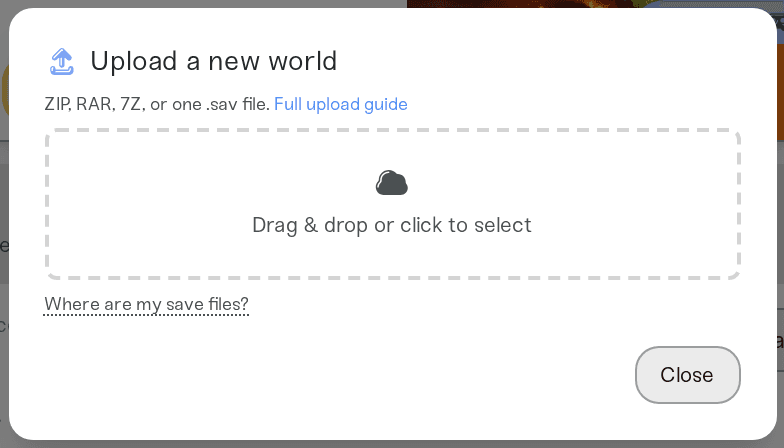
Setting up a brand new server? Switch on Upload Existing World while creating it and the same steps apply.
Moving from another host
Download the old server's RSDragonwilds/Saved/SaveGames folder with that host's file manager or SFTP. Hosts often keep their own default world next to yours. If you zip the old server's whole Saved folder, with its Config folder, we import the world its DedicatedServer.ini names in DefaultWorldName. Otherwise zip only your world's .sav, the one named there. Then upload it as above.
The world name comes from the file name
When you upload, your World Name setting becomes the name of the uploaded file (without .sav), and the world loads under that name. Two things follow:
Upload the file as it is. World Names are 3 to 16 letters, numbers, spaces, dashes or underscores. If your file's name doesn't fit (a long name from another host, or a "(1)" your browser added), the server uses the name saved inside the world when that fits, or a shortened version of the file name, and your server card tells you which name it chose. You can change it afterwards on the Overview card's Details tab; the world keeps its progress.
A copy's name keeps the world's own name. If the file name only adds what a copy or a download adds, such as
MyWorld (1).savorMyWorld - Copy.sav, the world keeps its own name,MyWorld.Changing World Name later renames your world. The same world, with all its progress, loads under the new name at the next start. If another saved world on this server already has the new name, the server loads that one instead. To play a different world, upload it.
What we check before importing
We read the world inside your file before anything on your server changes. An empty file, or one that was copied while the game was saving, is refused with its name, and your server keeps the world it has. Another game's save in the same folder is skipped. A compressed save from a PC is unpacked so the server can load it. If your upload holds several copies of one world (backups, snapshots, a "- Copy"), we import the current one and tell you which copies we skipped. If your upload has no world at all, the server card says what it found instead (characters, the game's install folder, settings files, or an Xbox app save) and where your world lives, and your server keeps the world it has. If a world file is damaged and its backup copy is in the same upload, the card names the backup to upload instead. Backups of other worlds that we leave out are named on the card.
Things that will not fix it
Editing the config file to set difficulty or PvP. Those values are not in
DedicatedServer.ini; they are in the save.Uploading several different worlds at once. We import one world per upload. If we find more than one, we tell you their names and where they are, so you can upload just that world's
.sav(while your upload is still kept, the card also lets you pick one). If you zip your old server's wholeSavedfolder, we import the world itsDedicatedServer.ininames. Older worlds in backup folders are fine: we import the current world and tell you what we skipped.Uploading a character file. Characters are separate from worlds and stay with each player.
Expecting more than 6 players. The cap is the game's, whatever world you upload.
Need help?
Ask in Discord or email support@haptic.gg with the name of the .sav you uploaded and what the server card says now. We can check which world the server actually loaded.


