Project Zomboid: A Player Is Kicked With a Mod File Error
 Project ZomboidTroubleshooting
When a player joins, Project Zomboid checks their mod files against your server's one file at a time and stops at the first difference, so the red message…
When a player joins, Project Zomboid checks their mod files against your server's one file at a time and stops at the first difference, so the red message names one file, never every mod that differs. That is why fixing one mod and trying again can name a different mod. The most common cause is not a broken mod at all: mods the player turned on in their own main menu change the order their game loads mods in. Renaming one file on their PC turns those off without unsubscribing from anything.
Read the red line first
The kick message starts with one of three lines, and each one means something different.
| The message says | What it means | Start with |
|---|---|---|
| File doesn't exist on the client | The player's game loads mods in a different order from your server. The file is usually there: a second line showing a path on their PC proves it. | The player's main menu mods (below) |
| File doesn't exist on the server | The player's game loads a mod, or a copy of one, that your server does not run. | The player's main menu mods, then two copies of one mod |
| File doesn't match the one on the server | The player has a different version or copy of that mod. | A restart if a mod just updated, then that one mod |
The path after the colon is where the check stopped. With "doesn't exist on the client", the mod that path belongs to is usually fine: the order around it is what differs.
"File doesn't exist on the client": turn off the player's main menu mods
Project Zomboid loads some of the mods a player turned on in their own main menu ahead of your server's mods: language packs, and packs that only pull in other mods. That shifts everything after them, so the player's list no longer lines up with your server's, and the check stops wherever the two split. Resubscribing to the mod it names only moves the stop to the next spot.
On the player's PC:
Close Project Zomboid
Quit the game completely, so it does not rewrite the file while they work.
Open the Zomboid mods folder
On Windows, press Win+R, paste %UserProfile%\Zomboid\mods and press Enter. On Linux, a Mac or a Steam Deck, it is the Zomboid/mods folder in their home folder.
Rename default.txt
Rename default.txt to default-old.txt. That turns off every main menu mod without unsubscribing from anything. Renaming it back later brings them back.
Join your server again
They join like normal. Your server's mods still download and load as they join, in your server's order.
Turning every mod off on the game's own main menu Mods screen works the same way, if they prefer to do it in the game.
Check your server for two copies of one mod
Some mods are on the Steam Workshop more than once, often an old upload and a fixed one, and both use the same mod ID. Only one of them can load. When both are on your server, each player's game takes whichever copy Steam lists first on their PC, which may not be the copy your server runs, and the check turns them away.
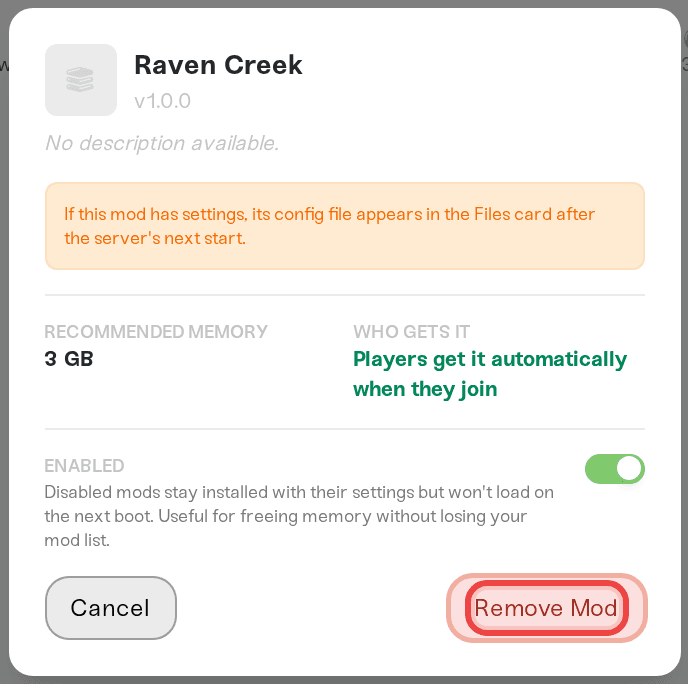
If your Mods card lists two versions of the same mod:
On the Mods card, click the copy you want to drop.
Click Remove Mod, then restart your server.
Ask your players to unsubscribe from that copy in Steam.
A copy of a mod in the player's own Zomboid\Workshop folder, where mod authors keep their uploads, also wins over their Steam subscription, so an old copy there can cause the same kick.
"File doesn't match the one on the server"
If joins worked yesterday and a mod just updated, your server keeps the old copy until its next restart, and the Mods card shows a clock on that mod. Restart your server and try again. Your Players Get the Mods Automatically explains how updates reach your server.
If no mod is waiting for a restart, the player has another copy of that one mod. They unsubscribe from it in Steam, delete any old copy of it in their Zomboid\Workshop or Zomboid\mods folder, and join again so the game downloads it fresh.
Things that will NOT fix it
Unsubscribing from all of your server's mods. It means downloading every mod again, and it does not turn off the main menu mods that usually cause this. Renaming
default.txtis faster.Resubscribing to each mod the message names. When the order is what differs, every try names a new mod.
Reinstalling the game. The
Zomboidfolder that holdsdefault.txtis in the player's user folder, and it stays after a reinstall.
Need help?
Message us in Discord or email support@haptic.gg with the full red message, or a screenshot or photo of it.


