40% OFFOur winter sale is on! We're giving everyone 40% off their new server at checkout!
 NecesseGuide
Your Necesse world can move to your server. Quit the world to the main menu, then power the server down, open the Backups card, click Upload World and drop…
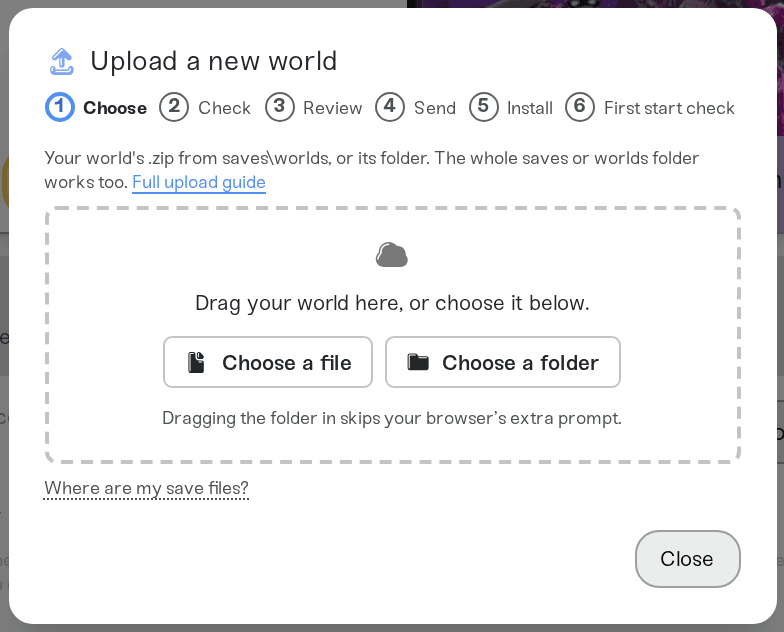
Your Necesse world can move to your server. Quit the world to the main menu, then power the server down, open the Backups card, click Upload World and drop in the world's .zip from your saves\worlds folder as it is. Your server switches to that world. A world of the same name on the server is saved as a backup first, and the server's other worlds stay.
Necesse saves each world as a .zip named after it, in the saves\worlds folder:
Windows: press Win+R, paste %APPDATA%\Necesse\saves\worlds and press Enter.
Mac: in Finder press Cmd+Shift+G and paste ~/Library/Application Support/Necesse/saves/worlds.
Linux and Steam Deck: in your file manager press Ctrl+L, paste ~/.config/Necesse/saves/worlds and press Enter (on Steam Deck, in Desktop Mode).
Another host: download the world's folder or .zip from saves/worlds, beside Server.jar or in the server user's .config/Necesse folder.
Quit the world to the main menu first, so the game is not saving while you copy it. The LATEST_BACKUP files in the same folder are the game's own automatic backups: upload your world's own .zip instead.
Power down your server.
Open the Backups card and click Upload World.
Drag in your world's .zip as it is, or its folder. The whole saves or worlds folder works too, as long as it holds one world.
Review the summary and click Upload and replace world.
When the import finishes, power the server up.
Your server's World Name is set to the uploaded world. A name with spaces or other special characters runs with _ in their place, so My World becomes My_World. A world from the Early Access version of the game is updated when the server first starts it.
The server keeps its own roles and bans from the Admins tab. If the uploaded world gives players a role, such as Owner, the server card names them after the import and they are added to the Admins tab.
More than one world: the upload held several different worlds. Pick the one you want from the list, or upload one world's .zip at a time.
Not a world: the upload held only settings, mods, logs, characters or the game's own program files. Upload the world's .zip from saves\worlds instead, and add mods on the Mods card.
A damaged world: the world's files were empty or cut off. Copy the world again with the game at the main menu, then upload the new copy.
Ask in Discord or email support@haptic.gg with the name of the file you uploaded and what the server card says after the upload.
 © Haptic, LLC
*40% off applies automatically at checkout for your first month. Ends November 22, 2026.