40% OFFOur winter sale is on! We're giving everyone 40% off their new server at checkout!
 NecesseGuide
Add Steam Workshop mods on your server's Mods card, then restart. Each Workshop mod is tested on a real Necesse server before it can reach yours. Your own…
Add Steam Workshop mods on your server's Mods card, then restart. Each Workshop mod is tested on a real Necesse server before it can reach yours. Your own .jar mods go into the necesse/mods folder with Files or SFTP. Everyone who joins needs the same mods.
Open My Servers, open your Necesse server, and go to the Mods card.
Paste the mod's Steam Workshop link, or search for it, and add it.
Restart the server. It loads the mod at the start.
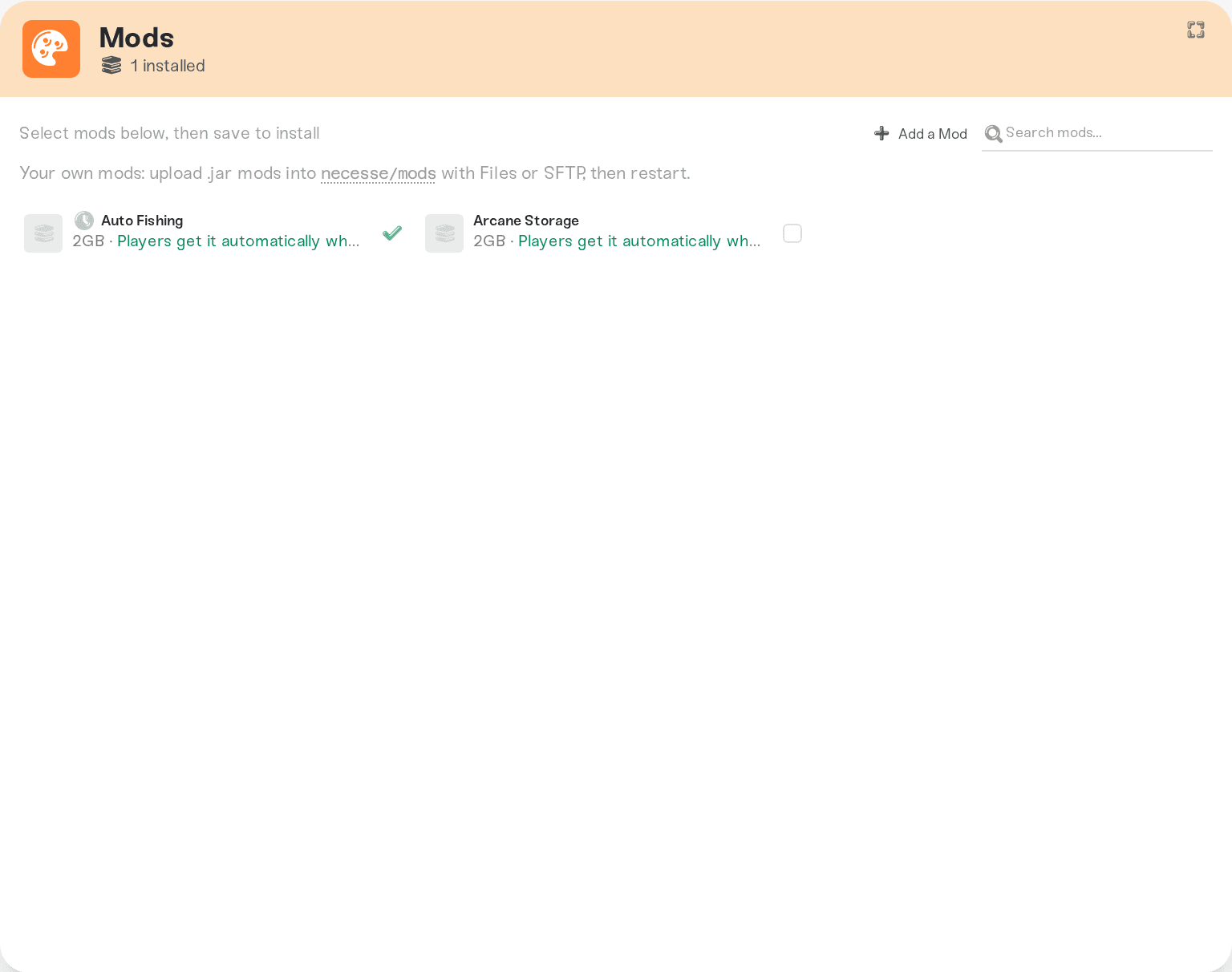
To remove a mod, remove it on the Mods card and restart.
When a Workshop mod's author ships a new version, Haptic fetches it for you, and your server runs it from its next restart. Restart on mod updates in your settings decides when that restart happens.
Open Files (or connect with SFTP), upload each mod's .jar file into necesse/mods, and restart the server. To remove one, delete it there and restart. Your own jars stay in the folder beside the Mods card's mods.
Everyone who joins your server needs the same mods in their own game. Send your friends the Workshop links of your server's mods so they can subscribe before they join.
The server still starts. A jar the game cannot load is skipped, and the Console card shows the game's line naming it. Remove that jar or mod and restart.
A Mods card warning. If a Workshop mod fails to download or load, the Mods card says so next to it.
Ask in Discord or email support@haptic.gg with the mod's Workshop link.
 © Haptic, LLC
*40% off applies automatically at checkout for your first month. Ends November 22, 2026.