40% OFFOur winter sale is on! We're giving everyone 40% off their new server at checkout!
 PalworldGuide
Every Palworld server has an address on its card (a name ending in .haptic.game, a colon, and a port number) and a password. Steam and Mac players open…
Every Palworld server has an address on its card (a name ending in .haptic.game, a colon, and a port number) and a password. Steam and Mac players open Join Multiplayer Game in Palworld, tick Enter Password, paste the address, and type the password. Xbox, PlayStation 5, and PC Game Pass players cannot type an address: they search your exact Server Name in Palworld's community server list, then type the password. Your server must say Online first. Joining never touches your world.
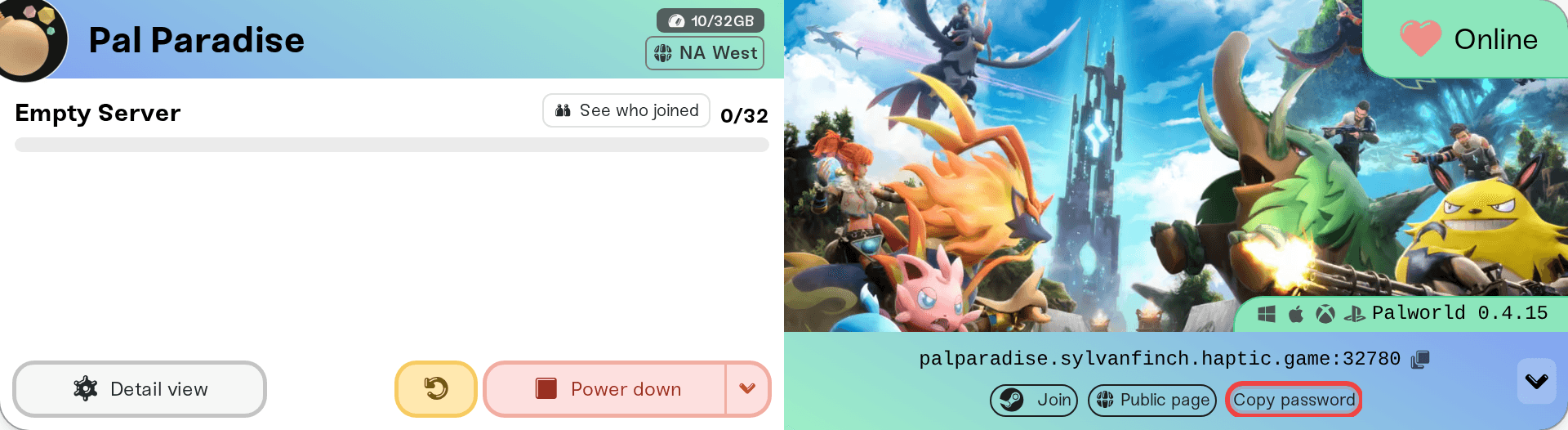
The server address (Steam and Mac players). It is on the colored strip at the bottom of your server card on My Servers. Click it to copy it; a Copied! bubble confirms. Send it with the :port part included.
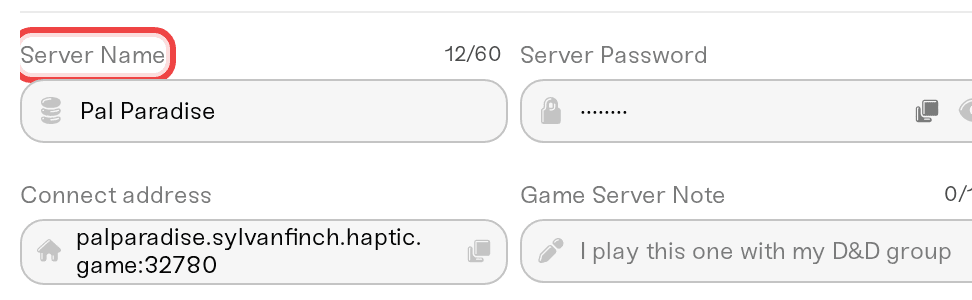
The exact Server Name (Xbox, PS5, and Game Pass players). It is the Server Name field in the Basic tab of your server's Overview card. Copy and paste it to your friends rather than retyping it.
The server password. Every new Palworld server gets a random one. Click the small arrow at the right end of the address strip (on a phone the pills sit under the address) and use Copy password. If the row says the server has no password, anyone who finds the server can join.
A server that says Online. A sleeping or stopped server does not answer and is not in the community list. Joining never wakes it: wake it from the dashboard (What is Wake and Play?), or let friends wake it from your public page once you turn that on (Let friends wake your server).
The same shortcut row has a How to join pill that opens this guide.
Start Palworld and choose Join Multiplayer Game.
At the bottom of that screen, tick the Enter Password checkbox next to the address bar.
Paste the address exactly as copied, hostname and port together with the colon, and connect.
Type the server password when the game asks.
Forgetting the Enter Password checkbox is the most common reason a direct join fails on a server with a password.
On a desktop browser, while your server is Online, the shortcut row also has a Join pill with the Steam logo. It opens Palworld through Steam and asks it to connect to your server. It is a shortcut for Steam players only, and it may just open Palworld's main menu; if it does, join by address as above. The address is the route that always works.
Xbox and PS5 copies of Palworld have no address box, so console players only ever join through the in-game community server list. PC Game Pass players join the same way. That is how Palworld works, and it is why Crossplay (on by default) lists your server there.
Start Palworld and choose Join Multiplayer Game.
Search the community server list for your exact Server Name. The list shows only a slice of all servers, so scrolling will not find yours; searching will.
Select your server and type the server password.
After the first join, Palworld's Recent Servers tab keeps the server one click away. If a console friend cannot find it, the checklist (Crossplay on, exact name, restart after a rename) is in Palworld: how Xbox, PS5, and Mac friends join your server.
"Wrong password" or the join just fails on a passworded server: tick Enter Password before connecting, and copy the password from the Copy password pill again. A changed password applies after a restart. A double quote (") in the password does not reach the game as typed, so pick one without it (Set or remove your server password).
Everyone could join yesterday and nobody can today: Palworld probably updated. See Palworld updated and nobody can join.
One player gets "Failed Join Game" with FailedInvalidLoginPlayerCharacterHandle: see Palworld: Failed Join Game with FailedInvalidLoginPlayerCharacterHandle.
A friend joined but got a brand-new character: see A friend gets a brand new character on your server.
You are in a world but your friends are not: check your server's player list on the dashboard. If you are not on it, you are playing a local or co-op world, not your server. Leave and join by address or by name as above.
A console player cannot see a mod: see Palworld: which mods work for console players.
Everything else (timeouts, stuck on connecting, works for you but not a friend): walk through I can't connect to my server.
Ask in Discord or email support@haptic.gg. Include your server name, the player's platform (Steam, Mac, Xbox, PlayStation, or Game Pass), and a screenshot of the message they get.
 © Haptic, LLC
*40% off applies automatically at checkout for your first month. Ends November 22, 2026.