40% OFFOur winter sale is on! We're giving everyone 40% off their new server at checkout!
 Minecraft BedrockGuide
Your server card shows one address in the form name:port. In Minecraft, open the Servers tab, choose Add Server, put the part before the colon in the…
Your server card shows one address in the form name:port. In Minecraft, open the Servers tab, choose Add Server, put the part before the colon in the address box and the number after it in the Port box, and join. Phones, tablets, and Windows PCs do this directly. Xbox, PlayStation, and Switch have no screen for typing an address, so console friends make a one-time network (DNS) change first. There is no server password; the allowlist in the Admins tab keeps strangers out.
The server address and port from the colored strip at the bottom of your server card on My Servers. Click it to copy it. The card shows them together as name:port; Minecraft asks for them in two boxes, so friends split them at the colon. The port always has to be typed: Bedrock cannot find it by itself.
The same Bedrock version as the server. Bedrock apps update themselves, so a server pinned to an older version turns updated players away (see the failures below).
A server that says Online. A sleeping or offline server does not answer, and trying to join does not wake it. Wake & Play servers wake from the dashboard (What is Wake and Play?), and friends can wake yours from your public page once you turn that on (Let friends wake your server).
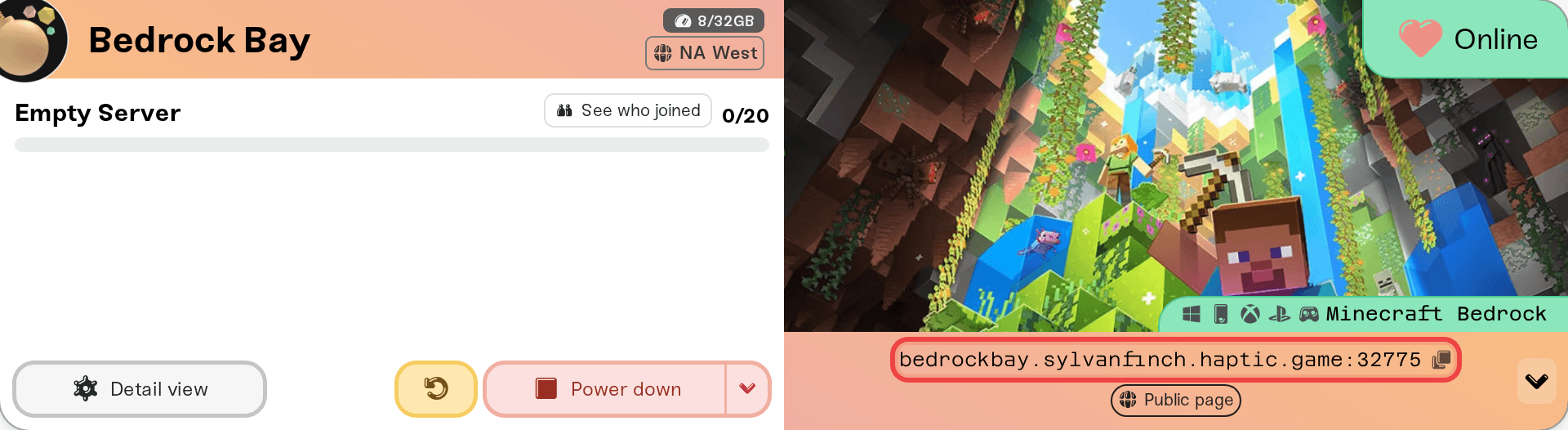
The card's shortcut row has a How to join pill that opens this guide: on a desktop browser, click the small arrow at the right end of the address strip; on a phone the pills sit under the address. The Share button there puts the address in a message for your friends.
Open Minecraft and go to the Servers tab.
Scroll down and choose Add Server.
Enter any name, then the address (everything before the colon) and the port (the number after it), each in its own box.
Save and join.
Nothing to install and no extra account: players sign in with the same Microsoft account they already use in Minecraft.
Console Minecraft has no screen for typing in a server address. That is a limit Microsoft, Sony, and Nintendo put on the console versions, and every Minecraft host has it. The standard workaround is BedrockConnect: the console's DNS points at that free service once, and Minecraft's Featured Servers list then opens a menu where an address can be typed.
Get the current DNS address from the BedrockConnect project. The addresses change, so always take it from there.
In the console's network settings, set DNS to manual: the BedrockConnect address as primary, a normal public resolver such as 8.8.8.8 as secondary.
Fully close and reopen Minecraft, open the Servers tab, and launch any Featured Server. The BedrockConnect menu opens instead.
Add a server there with your address and port from the card.
Per-console screens and tips are in How Xbox, PlayStation, and Switch friends join your server. It is written for Java servers with crossplay, which show a separate Bedrock: row; on your Bedrock server, use the one address on your card.
Minecraft Java players cannot join a Bedrock server. If your group mixes Java and Bedrock, the way to play together is a Minecraft Java server with Bedrock Crossplay on; see Minecraft: Java and Bedrock Crossplay on Your Server.
While the allowlist is off, anyone signed in to Xbox Live with your address can join. To allow only chosen players, open the Admins tab on the Overview card, turn the allowlist on, and add each player by gamertag. It warns you first, because it locks out everyone not on the list, you included. The allowlist only works with Xbox sign-in, so turning it on also turns Enable Offline Mode off. More in Manage admins, whitelist, and bans.
An "outdated server" message: the player's app is newer than your server. Set Game Version on the Overview card to Latest (auto-updates) and restart; see Minecraft: Versions, Updates, and "Outdated Server" Errors.
"Unable to connect to world": check the port box holds the number after the colon, and the address box holds only the part before it. Then restart the Minecraft app, and try another network such as a phone hotspot.
Turned away at once: the allowlist is on and that player is not on it. Add them in the Admins tab.
A console that never shows the BedrockConnect menu: the DNS change did not take. Reopen Minecraft fully, or try another BedrockConnect address from the project page.
Everything else: walk through I can't connect to my server.
Ask in Discord or email support@haptic.gg. Include your server name, the player's device (phone, Windows, Xbox, PlayStation, Switch), and a screenshot of the message they get.
 © Haptic, LLC
*40% off applies automatically at checkout for your first month. Ends November 22, 2026.