40% OFFOur winter sale is on! We're giving everyone 40% off their new server at checkout!
 NecesseGuide
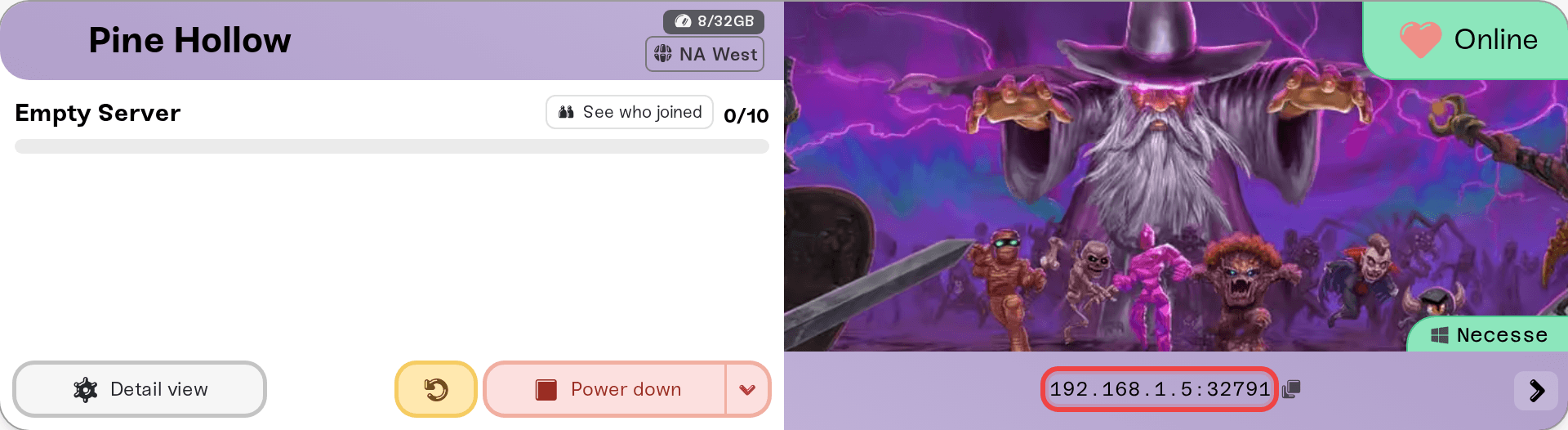
While your server is online, its card shows an IP address and port, like 203.0.113.10 with a colon and a port number after it. In Necesse, open…
While your server is online, its card shows an IP address and port, like 203.0.113.10 with a colon and a port number after it. In Necesse, open Multiplayer, then Join server, add a server with that IP address and port, and type the server password if you set one. There is no Steam Join button for Necesse: everyone joins from inside the game. Your server is for the PC version on Steam: Windows, Mac and Linux players all join the same way. Joining never touches your world.
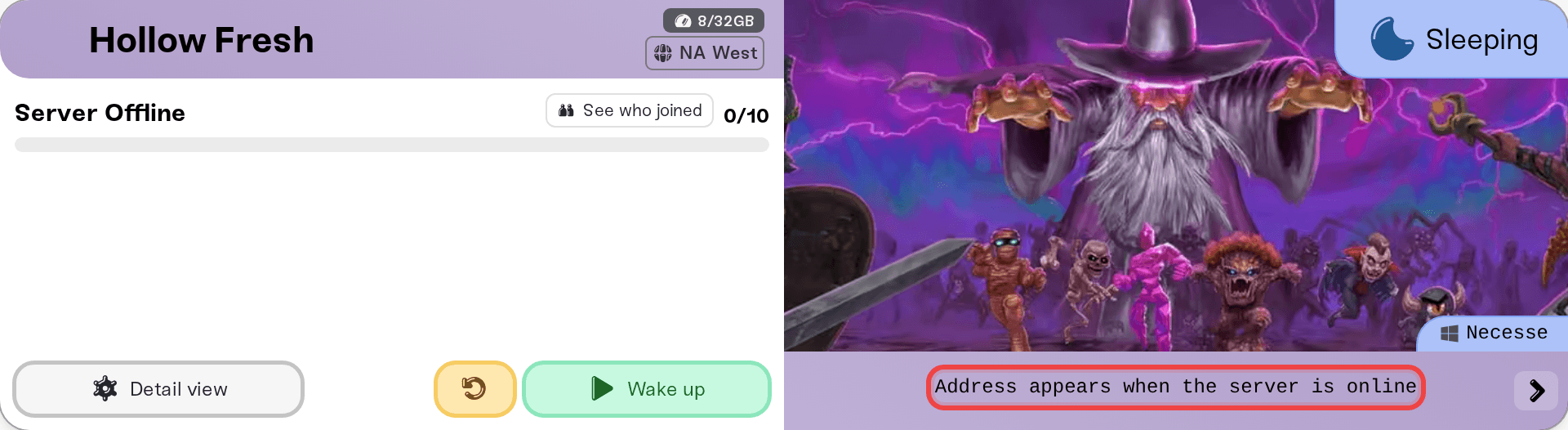
The IP address and port from the colored strip at the bottom of your server card on My Servers. Click it to copy it. It only shows while the card says Online; while the server is stopped, asleep or starting, the strip says Address appears when the server is online.
The server password, if you set one. On a desktop browser, click the small arrow at the right end of the strip and use the Copy password pill; on a phone the pills sit under the address. With no password set, the row says This server has no password and anyone with the address can join. A Necesse password is up to 32 characters on one line. See Set or remove your server password.
A server that says Online. Wake & Play servers wake from the dashboard (What is Wake and Play?), and friends can wake yours from your public page once you turn that on (Let friends wake your server). Trying to join does not wake it.
The same Necesse version as the server, and the same mods if your server runs any (below).
The same row of shortcuts has a How to join pill that opens this guide, so you can send it to your friends.
Start Necesse from Steam and choose Multiplayer.
Open Join server and add a new server.
Enter the IP address and port from your card. Where the game asks for them separately, the IP is the part before the colon and the port is the number after it.
Join it, and type the password when the game asks for one.
Use the numbers exactly as the card shows them; the card shows no server name for Necesse.
Your server can come back on a different machine after it sleeps or stops, and then it has a new IP address. That is why the card only shows the address while the server is online. If a server you saved in Join server stops answering, copy the address from your card again and update the saved entry.
Everyone who joins a modded server needs the same mods in their own game. Send your friends the Steam Workshop links of your server's mods so they can subscribe before they join; see Necesse: Install Mods.
A version message: the player's game and the server are on different Necesse builds. After a Necesse update your card says New update available, and the server installs the new build at its next restart; restart your server if players are waiting.
"Wrong password": copy it from the Copy password pill again. A change to the password applies on the next restart.
The server is full: raise Max Players in your server settings (from 1 to 250, 10 by default). It takes effect on the next restart.
A banned or missing role: roles and bans are on the Admins tab; see Necesse: Become an Admin.
Everything else (timeouts, stuck connecting, works for you but not a friend): walk through I can't connect to my server.
Ask in Discord or email support@haptic.gg. Include your server name and a screenshot of the message the player gets.
 © Haptic, LLC
*40% off applies automatically at checkout for your first month. Ends November 22, 2026.