40% OFFOur winter sale is on! We're giving everyone 40% off their new server at checkout!
 Voyagers Of NeraGuide
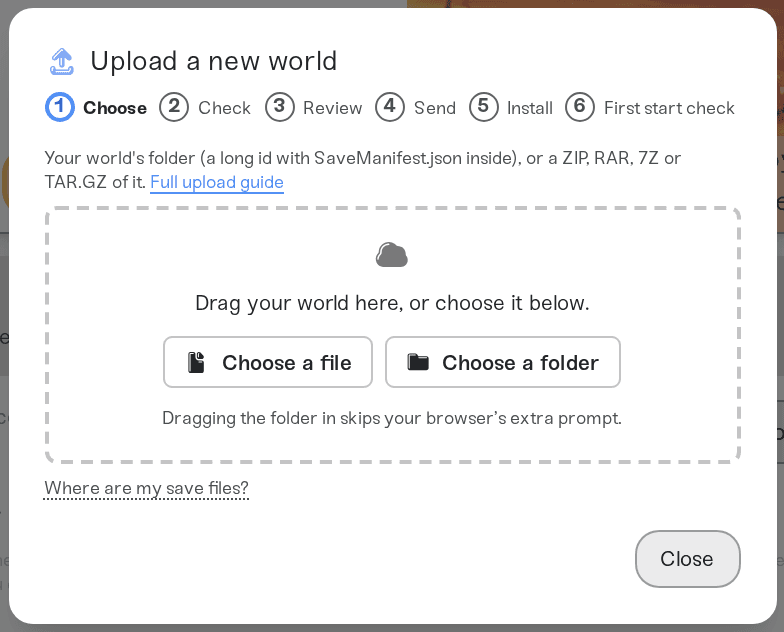
Stop your server, open the Backups card and choose Upload World. Upload your world's folder (a long id with SaveManifest.json inside) from…
Stop your server, open the Backups card and choose Upload World. Upload your world's folder (a long id with SaveManifest.json inside) from %LOCALAPPDATA%\BoatGame\Saved\PersistedData\nera, or a ZIP, RAR, 7Z or TAR.GZ of it. The world that was on your server is saved as a backup first.
Close Voyagers of Nera, so the game is not saving.
Press Win+R, paste %LOCALAPPDATA%\BoatGame\Saved\PersistedData\nera, and press Enter.
Each world is a folder named with a long id, made of 32 letters and numbers. Open one: it holds SaveManifest.json and two folders, Green and Blue. Sort by date modified: the one you played last is the newest.
The upload panel shows the same path under "Where are my save files?".
Moving from another host? Download the world's folder from BoatGame\Saved\PersistedData in that server's files. A ZIP of the whole PersistedData folder works too.
Open My Servers and stop your Voyagers of Nera server.
On the Backups card, choose Upload World and drop in the world's folder. A ZIP, RAR, 7Z or TAR.GZ of the folder works too.
Wait for the import to finish. The world that was on your server is saved as a backup first, so it is one click away if you want it back.
Start the server, and send your friends the new invite code from your server card.
The world comes across: the folder with SaveManifest.json and both save slots.
One world per server. If your upload holds more than one world, the server card lists them so you can pick the one to install.
Your server's settings stay. The server name, password, player limit and game rules are the ones on the dashboard. If your upload carries another server's settings files, they are left out, and the import tells you so.
Only autosaved play comes across. Voyagers of Nera writes the world on its autosave timer, so play since the last autosave is not in the folder. The Autosave Interval (seconds) on the Details tab sets how often that is on your server.
Uploading only SaveManifest.json or only the settings files. The world needs its Green and Blue folders beside the manifest, so upload the whole folder.
Placing the folder somewhere else with Files. Use Upload World, which puts it in the right place and checks it first.
If the server starts a new world instead of yours, your server card says so, and the world that was on your server is still in Backups.
Ask in Discord or email support@haptic.gg with the name of what you uploaded and a screenshot of the message under the upload box.
 © Haptic, LLC
*40% off applies automatically at checkout for your first month. Ends November 22, 2026.